Capture and Record Guide
pointbit can take a picture or a recording of the window or the whole screen under the pointer. Each one is a key sequence: tap ⌘ twice, then press one letter.
Shortcuts
Place the pointer over the window or screen. Tap ⌘ twice quickly (each tap shorter than 0.3 s, the second within 0.35 s of the first), then press the letter within 1 s.
| Keys | Action | Result |
|---|---|---|
| ⌘ ⌘ T | Start or stop recording the window under the pointer | .mov in the save folder |
| ⌘ ⌘ A | Start or stop recording the whole screen under the pointer | .mov in the save folder |
| ⌘ ⌘ C | Picture of the window under the pointer (no shadow) | .png in the save folder; path or image in the clipboard |
| ⌘ ⌘ S | Picture of the whole screen under the pointer | .png in the save folder; path or image in the clipboard |
- The four letters spell tacs: T and A record, C and S take a picture.
- The letter is not passed to the front app.
- Shortcuts that hold ⌘ while pressing a letter (⌘T, ⌘A, ⌘C, ⌘S) are not affected.
- "Whole screen" is the display that the pointer is on.
Setup
The shortcuts are off by default. Turn them on once:
| Step | What to do | Why |
|---|---|---|
| 1 | Menu bar icon → Settings… | It opens Preferences. |
| 2 | Under Capture and Record, check Turn on ⌘ ⌘ + T / A / C / S. | It turns the shortcuts on. |
| 3 | Allow pointbit in System Settings → Privacy & Security → Accessibility. | It lets the app read the ⌘ ⌘ keys. |
| 4 | Allow pointbit in Screen & System Audio Recording (the page opens after step 3). | It is needed for pictures and recordings. No audio is recorded. |
| 5 | If the Screen Recording line still shows ✗, click Reopen App. | macOS applies this permission after the app reopens. |
Both permission lines show ✓ when the setup is complete:
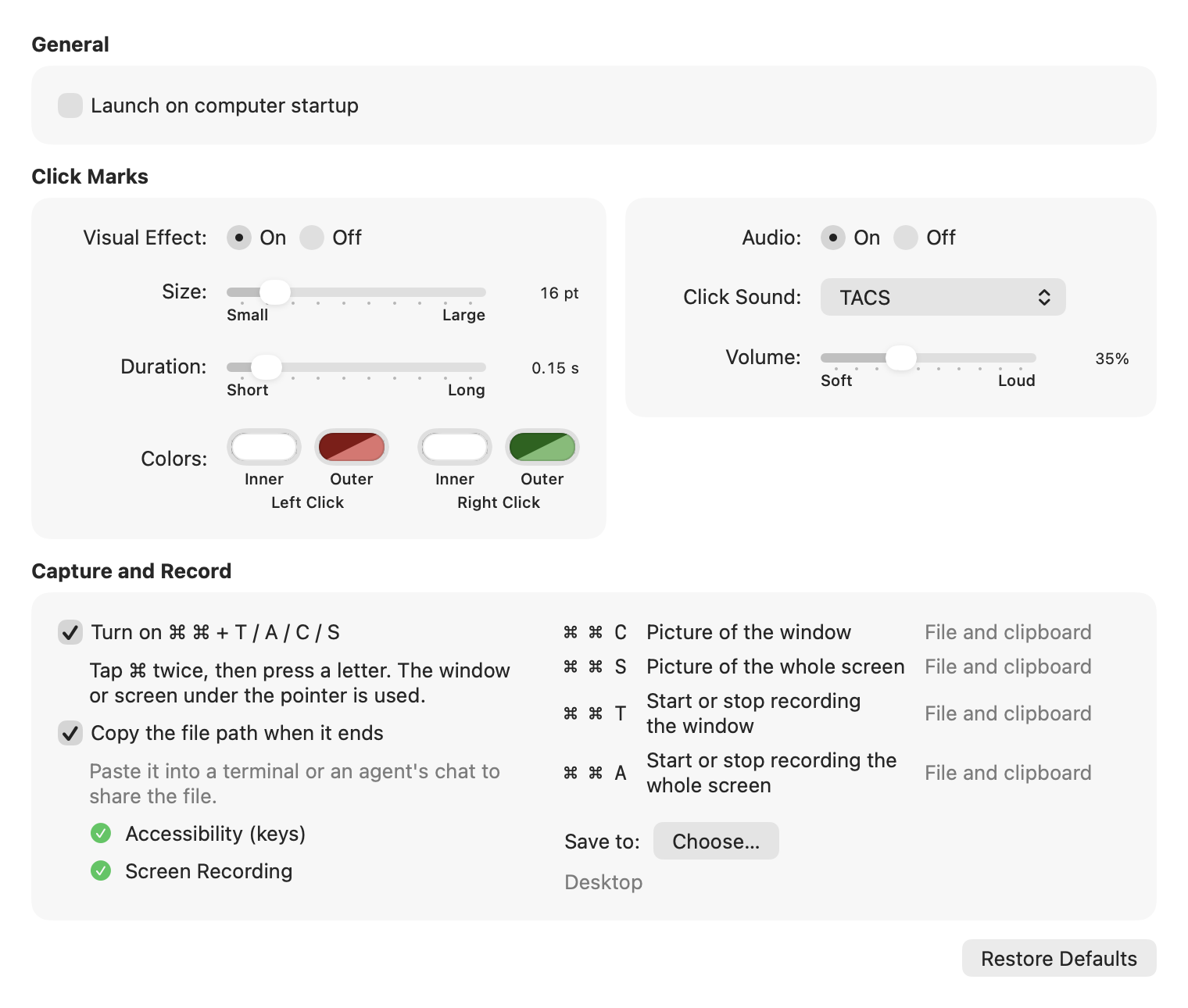
With the checkbox off, the app does not watch the keyboard.
Results
| Type | File | Confirmation |
|---|---|---|
| Picture (C, S) | TACS-<date>-<time>.png (for example TACS-20261101-095000123.png, time with milliseconds) in the save folder, also copied to the clipboard | White flash and shutter sound |
| Recording (T, A) | TACS-<date>-<time>.mov in the save folder (H.264, or HEVC above 4K; 30 fps; no audio) | Red dot in the menu bar while recording |
Files go to the Desktop by default. To use another folder, choose it in Preferences → Capture and Record → Save to: Choose…; Desktop switches back. If the chosen folder is moved or deleted, files go to the Desktop. A copied path that has a space or any character other than English letters, digits and / . _ - is put in single quotes, so it pastes into a shell as one argument.
With Copy the file path when it ends on (the default), the clipboard holds the file's path as text when a picture or recording ends. Paste it into a terminal or an agent's chat. With it off, a picture copies the image instead and a recording leaves the clipboard alone.
When two files are made in the same second, the second one gets "-2" at the end of its name (then "-3", and so on). Names have no spaces, so a pasted path works in a shell as is.


Stopping a recording
| Way | Note |
|---|---|
| ⌘ ⌘ T or ⌘ ⌘ A again | Either key stops a recording, whichever started it. |
| Menu bar icon → Stop Recording | Shown only while recording. |
| Quit the app | The file is finished before the app quits. |
A window recording keeps the area where the window was when the recording started. Turning the shortcuts off, or losing the Accessibility permission, also stops a recording.
Troubleshooting
| Symptom | Fix |
|---|---|
| Nothing happens after ⌘ ⌘ and the letter | Check the permission lines in Preferences. Use Open Settings for a line with ✗. Check that the checkbox is on. |
| A beep and no file | Screen Recording is not allowed, or there is no window under the pointer. Allow Screen Recording and click Reopen App. |
| No menu bar icon, or no red dot while recording | On a Mac with a notch, macOS hides menu bar icons that do not fit beside it. A recording adds the macOS recording indicator, which can push the icon out. Hold ⌘ and drag the icon to the right, or turn off other icons in System Settings → Menu Bar. |
| "macOS stopped the key capture" in Preferences | Turn the checkbox off and on. |
| The keyboard does not respond | Choose Apple menu → Force Quit…, then select pointbit. This is not expected: the tap that can hold back keys exists for at most 3 s. |
| "Apple could not verify…" on first open | Open System Settings → Privacy & Security, click Open Anyway, then Open in the warning. This is needed once (Apple's steps). |
Resetting the permissions
Quit the app from the menu bar first, then run:
tccutil reset Accessibility si.codegg.pointbit
tccutil reset ScreenCapture si.codegg.pointbit
open /Applications/Pointbit.app --args --settings
How it works
| Part | Detail |
|---|---|
| Key watching | A listen-only event tap reads the keys. It cannot hold back or delay input. |
| Holding back the letter | A second tap exists only from the second ⌘ press until the letter is released, for at most 3 s. |
| Pictures | /usr/sbin/screencapture with the window id (C) or the screen rectangle (S). |
| Recordings | ScreenCaptureKit captures the display and crops it to the window or screen; AVAssetWriter writes the .mov. |